Lovable Cloud Pricing: How to Cut the Bill
Lovable Cloud pricing has no price list of its own: your app’s database, storage, traffic and backend code are paid in run credits from the same balance you build with, and top-up credits cost $0.30 each on Pro and $0.60 on Business (Lovable’s docs, checked October 19, 2026). To cut the bill, open More → Cloud → Usage, see which category leads, and fix that one first. It is almost always the instance size, a scheduled job that never lets the backend sleep, or files nobody deletes.
That’s the short version. The rest is how to read the page and what to change, because the fixes are not equal and some of them cost you more than they save.
Read the Usage view before you touch anything
The Usage view charts your project’s run credits per day for the last 30 days (you can switch to 90) and sorts the spend into six buckets: Database (split into Database server and Database storage), AI, Compute, Network, Storage and Realtime. The number next to each bucket is credits, not dollars. Multiply by what you pay per credit if you want a dollar figure.
Two things on that page catch people. First, the total shows how much of it your monthly grant covered. Right now every Free, Pro and Business workspace gets 20 credits a month for Cloud and 4 for AI features in deployed apps. Lovable labels both “temporary, subject to change”, so don’t build a budget on them. Second, if the project burned more than 5 run credits in the last 7 days, owners and admins get an Optimize your usage button. It starts a chat that investigates the spend, and that chat is normal build usage, so it costs credits too.
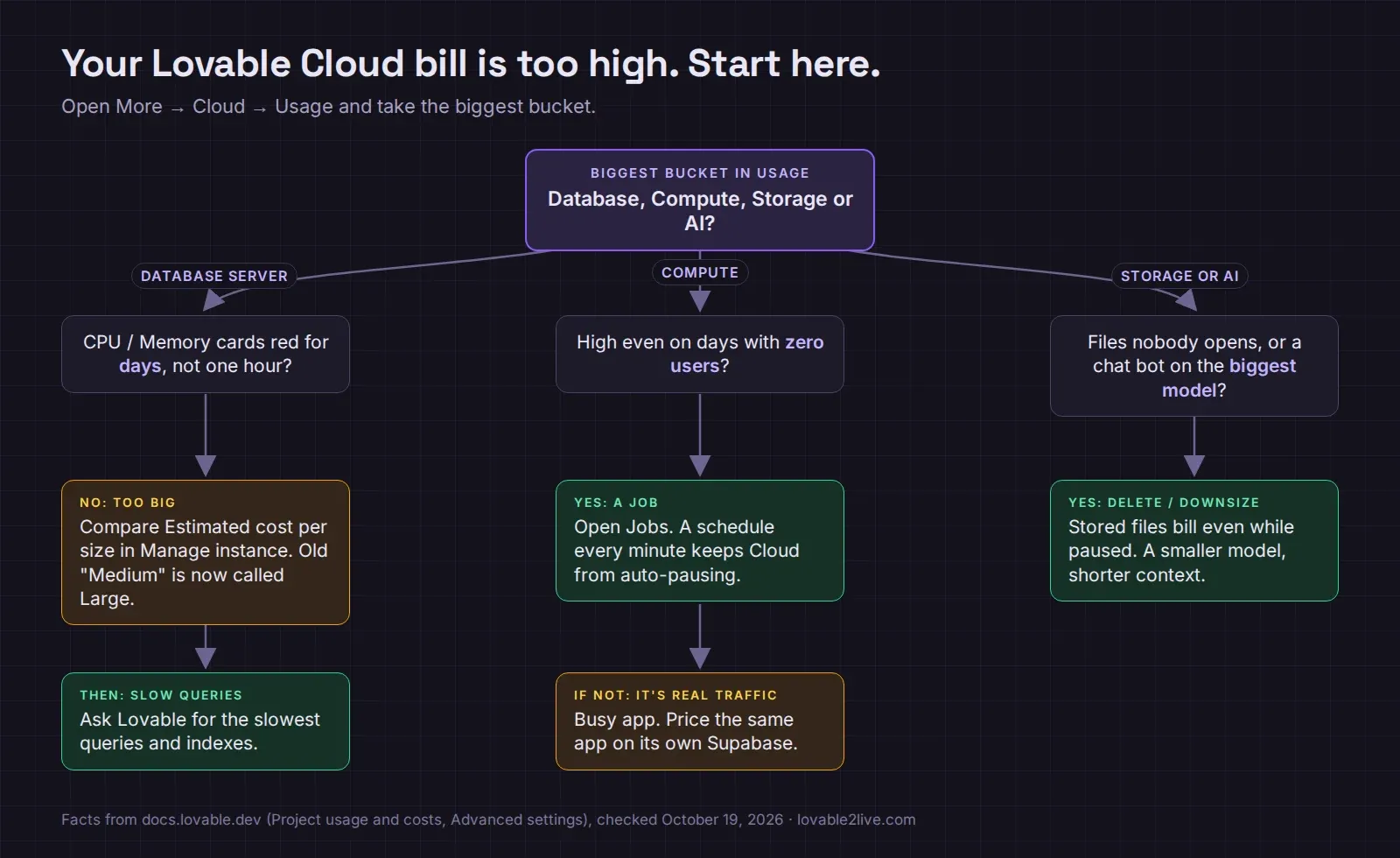
The fixes, in the order they usually pay off
Check which instance you’re really on. Lovable renamed the database sizes on July 31, 2026: the old Medium is now called Large, the old Large is X-Large, the old X-Large is 2X-Large, and a new, smaller Medium sits between Small and Large. Hourly prices didn’t change, but plenty of founders who “picked Medium” in the spring are paying for what the dialog now calls Large without knowing it. Go to More → Cloud → Overview → Advanced settings, open Manage instance, and read the Estimated cost under each size. Lovable bases those estimates on your last 30 days of usage, which makes them more honest than any number I could give you here.
Don’t downsize on a hunch, though. The CPU, Memory and Disk cards above it show 24 hourly segments, and a highlighted one means the database was close to its limit that hour. One red hour after a launch email is fine. A week of red afternoons means the instance is too small and shrinking it will make the app slow, which costs more in lost users than the credits you saved. A resize takes a few minutes with a short restart, so do it at night.
Find the job that keeps the lights on. Lovable pauses idle Cloud projects automatically, which is why a side project with no traffic costs close to nothing. That automatic pause does not apply to projects with scheduled jobs. We looked at a booking app last month where Compute was the top bucket every single day, including days with zero bookings. The cause was a job that ran every minute to expire unpaid reservations. Nobody had touched it since the first prompt that created it. Moved to once an hour, the daily Compute line dropped to a sliver and the app behaved exactly the same. Open Jobs in the Cloud tab and look at the schedule column before anything else.
Delete files, because paused isn’t free. Stored files keep using credits even while a project is paused. If your app lets users upload photos and never cleans up abandoned drafts, Storage grows forever. A cleanup job that runs daily (yes, a job, but a cheap one) or a size limit on uploads fixes it.
Fix the slow queries. A query that scans a whole table on every page load shows up as Database server time. Ask Lovable in the chat to find the slowest queries and add indexes. This one costs build credits up front and pays back slowly, so do it after the three above.
Pick a cheaper model for AI features. The AI bucket is charged per call by model and tokens. A support bot that sends the whole chat history with every message on the biggest model is the classic one. A smaller model for the first answer and shorter context usually halves it.
The top-up price trap on Business
This one is just arithmetic. A one-time top-up is $15 for 50 credits on Pro and $30 for 50 credits on Business, so a Business workspace pays twice as much for every extra credit its live app burns. If you upgraded to Business for SSO or team features and your app’s Cloud usage runs past the plan’s credits every month, compare that against a bigger Pro plan before the next renewal.
Whatever plan you’re on, set a monthly spend limit on auto top-up (Workspace settings → Plans & credit usage → Add credits → Auto top-up). Without one, a bot hammering your signup form can top you up all weekend. With one, the worst case is the backend pausing until you add credits, and your published site stays up while that happens.
When trimming isn’t the answer
Some apps are simply busy, and that’s the good problem. Once the Usage view shows Database server and Network as the two biggest lines on normal traffic, you’re paying Lovable’s markup on infrastructure you could run on your own Supabase project, with a bill in dollars you can read line by line. Our free Lovable cost check scans your repo and shows what the same app would cost on its own backend, and moving from Lovable Cloud to Supabase takes us one to two days with your data and users included. Prices are on the pricing page.
If you’d rather someone else read the Usage page with you, send us a note with a screenshot of it.