Give Us Access to Your Supabase Project
Invite Lovable 2 Live to your Supabase organization so we can migrate your Lovable project into it. Do this after you have given us Lovable access.
Step by step
- 1
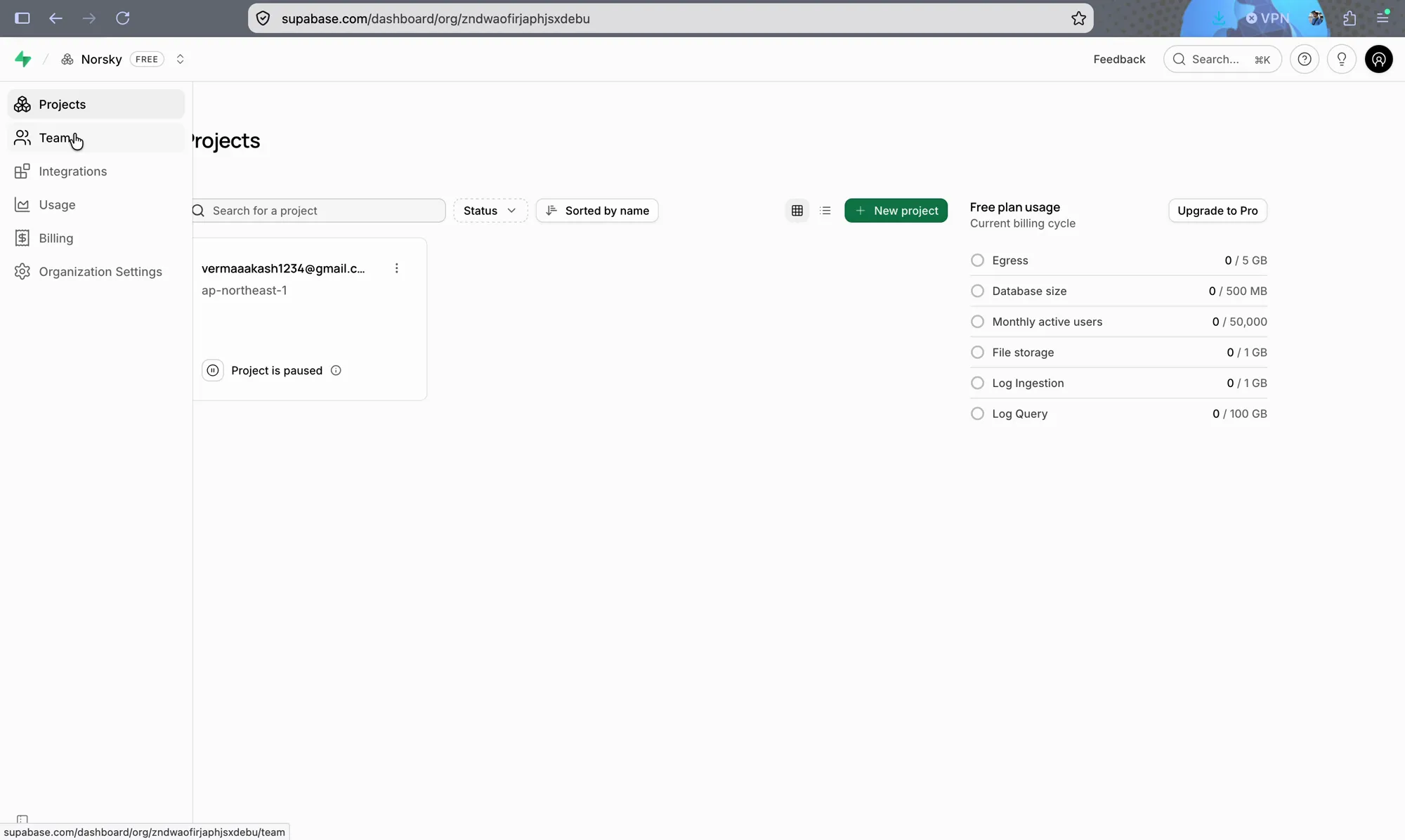
Open Team in your Supabase dashboard
Sign in to your Supabase dashboard and open the organization that holds your project. In the left sidebar, click Team.
- 2
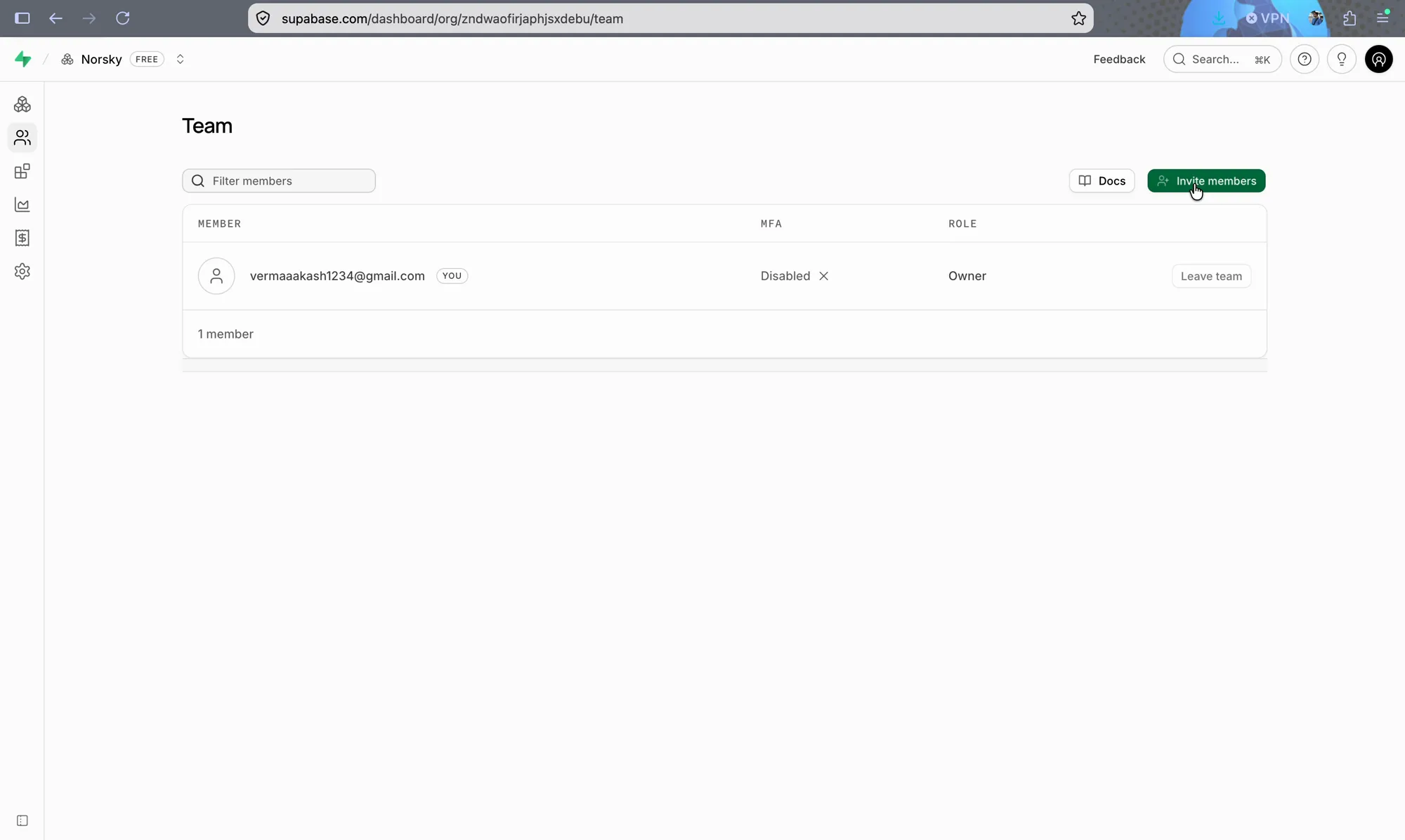
Click Invite members
On the Team page, click the green Invite members button at the top right.
- 3
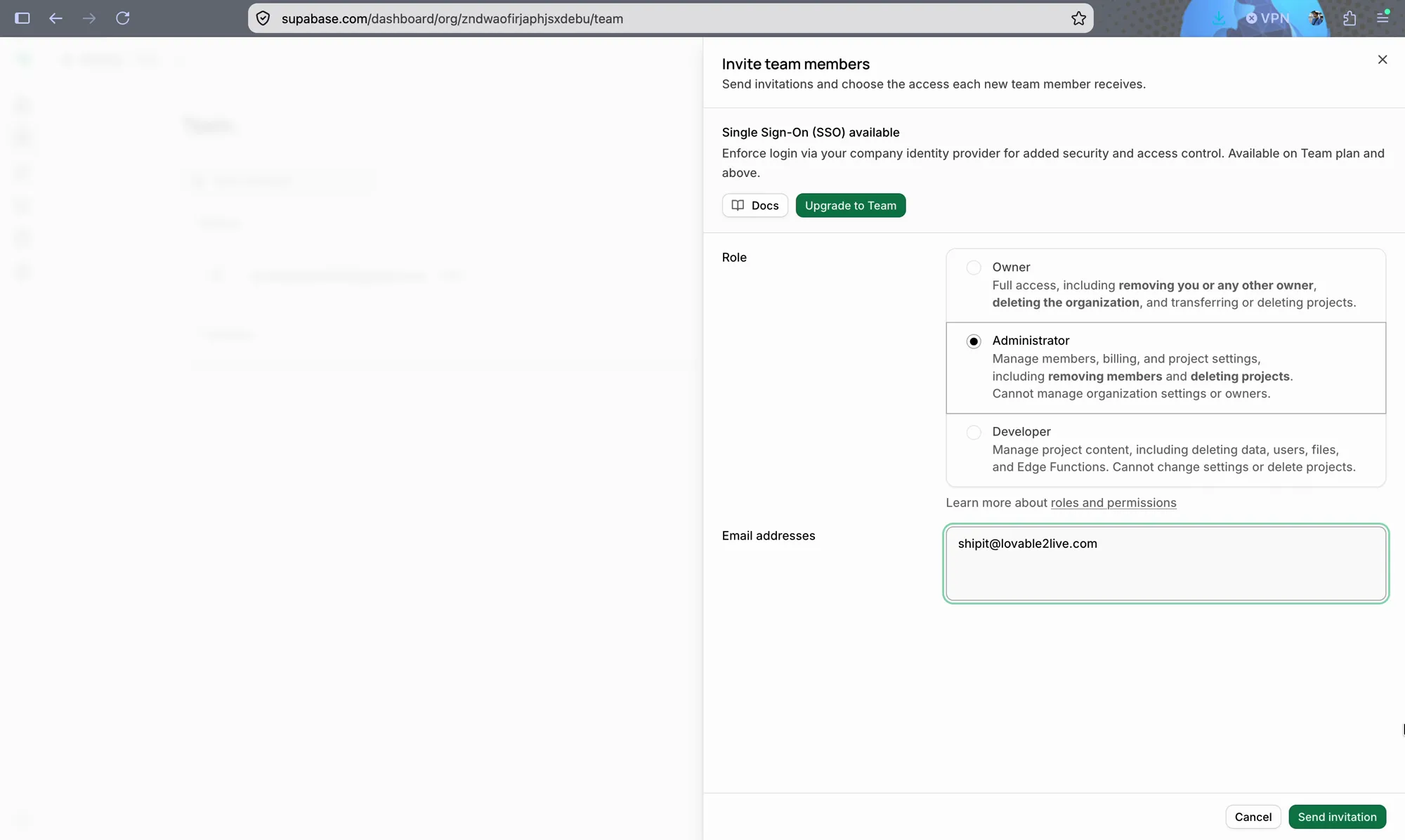
Choose Administrator and enter our email
Under Role, select Administrator (not Developer). The migration needs access to project settings that the Developer role cannot change. Under Email addresses, enter shipit@lovable2live.com, then click Send invitation.
- 4
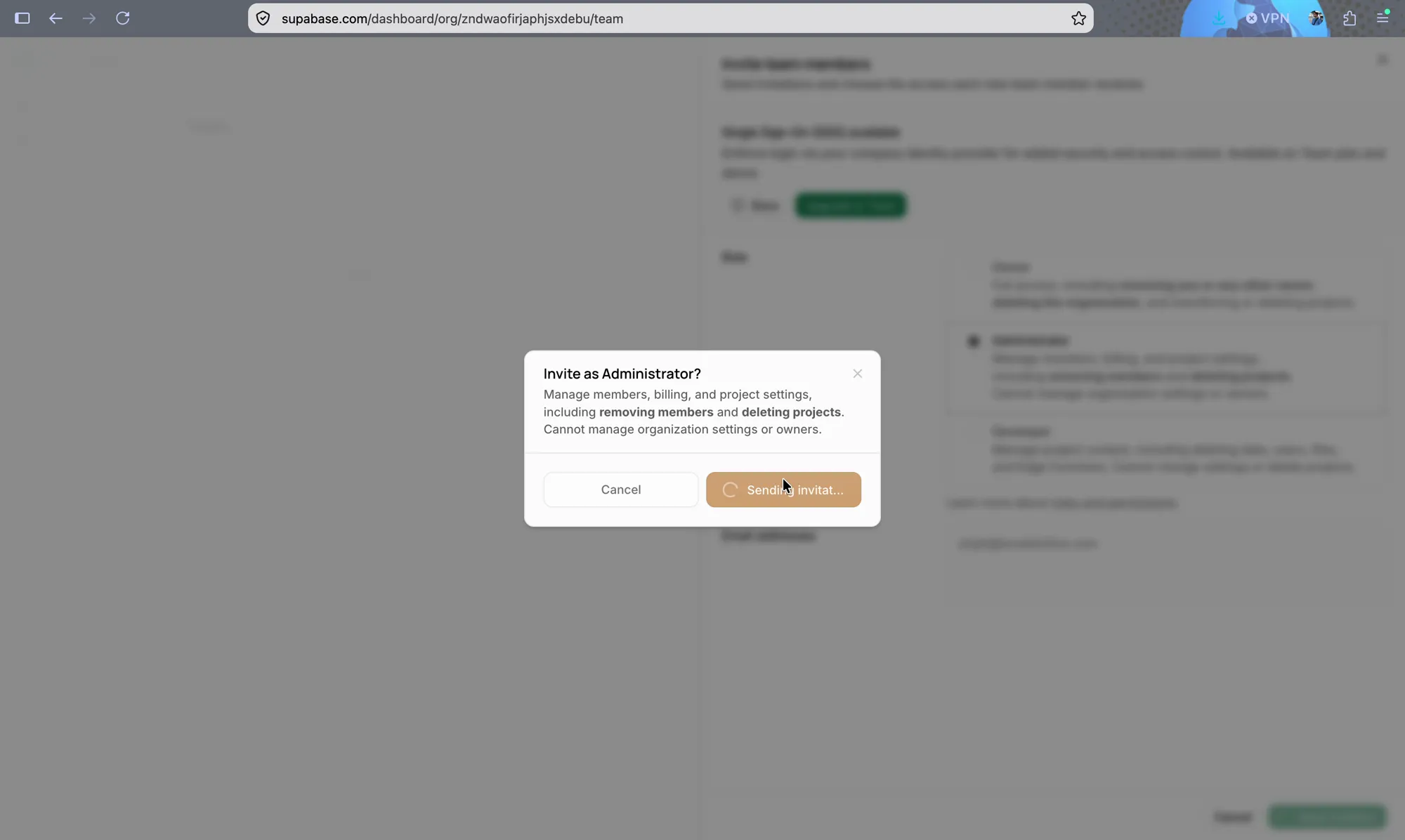
Confirm the invitation
Supabase asks “Invite as Administrator?”. Confirm to send the invitation.
- 5
Done
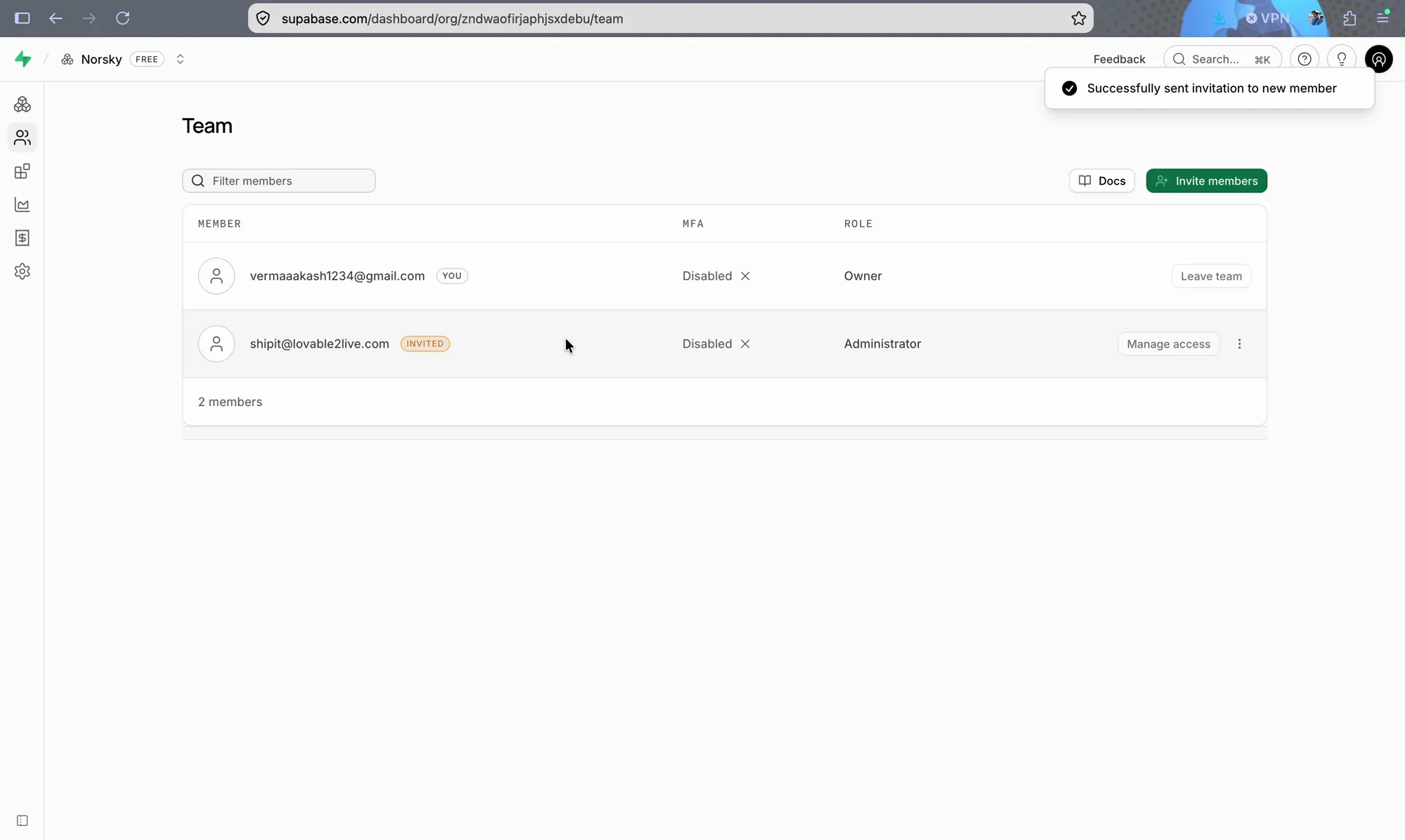
You will see “Successfully sent invitation to new member” and shipit@lovable2live.com listed as an invited Administrator. Once we accept, we can access your project and start the migration.
- The role must be Administrator. Some project settings the migration needs are not available to Developers.
- You can remove us from Team as soon as the migration is done. Nothing stays connected after that.